Showing posts with label technology. Show all posts

Wednesday, July 19, 2017

Dot.

written by Randi Zuckerberg
illustrated by Joe Berger
Harper, 2013
review copy from public library


I was looking at the new book shelf in our quaint little public library and across the room on a shelf Dot. started calling my name.  You see, I like polka dots and this is a perfect example of how a book cover can entice a reader.  I asked Mr. George my favorite public librarian about the book and he couldn't stop gushing about it.  I kept wondering, How did I miss this title?

Dot loves technology.  With two to five word sentences she shows the reader all the things she can do; surf, swipe, tweet, tap, and touch are a few examples.  After much technology doing,  Dot gets all talked out and is tired.  Her Mom sends her out the door, "Time to REBOOT!  RECHARGE!  RESTART!"  I fell in love with Mom right there.  Dot perks up with a smile when she gets outside with sunshine and remembers.  Here's the interesting twist.  All the things she shows the reader she can do with technology she does outside.  For example; she swipes when she finger paints!  The ending is the best because Joe Berger the illustrator shows the reader what balance looks like.  I think you'll like what he did.

Wednesday, March 29, 2017

Tips for Creating a Board in Discovery Education

I've had access for Discovery Education for years through my district and on and off I go through phases where I will find a video and share it with the entire class.  I've loved using it has a visual for our content learning or a way to front load some work we are doing together.  Earlier this year I was talking with my college roommate on the phone and she started rattling off all these things I could do using Discovery Education.  My head started spinning because I knew none of this.  As with new learning, I felt a bit overwhelmed and wanted to spend some - one on one time with her to see and learn more. 

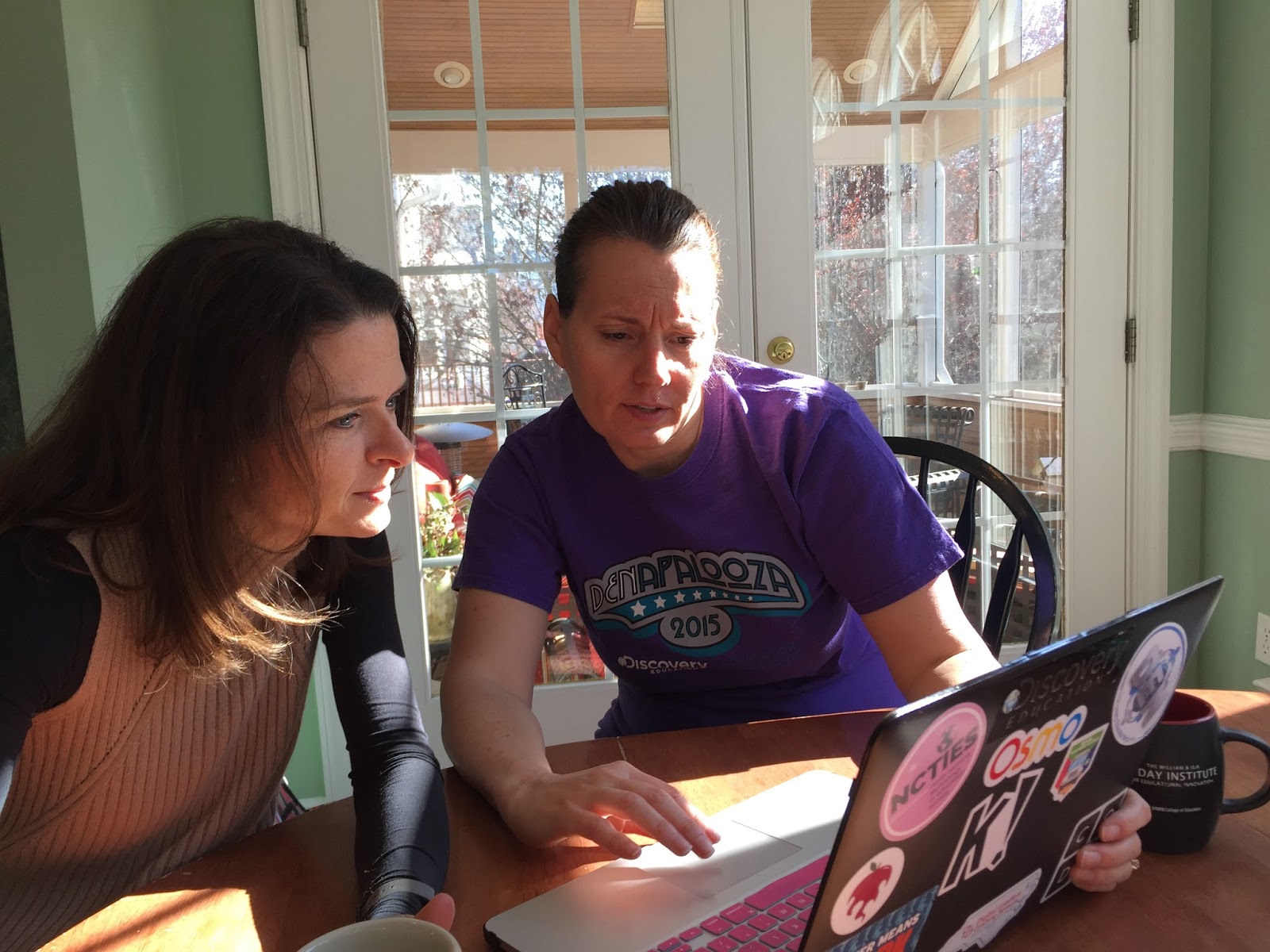
I recently had this opportunity while traveling south for spring break and stopped in NC to visit her.  She is currently in a position helping teachers embed technology into their days and encouraging them to try new things.  She's a natural teacher.  I loved hearing her share how she guided kindergarteners through using a Discovery Education board for research.  You can read about Wanda in a Discovery Education Community Member highlight post.  She showed me the feature Board Builder and her example for front loading a new classroom read aloud titled, Stone Fox.  You can search it in Discovery Education, if you have an account and see her work.


Think of board builder as virtual bulletin board.  You can gather and post images, videos, files, and documents in one place for students to access, view, and work with.  We are starting my new favorite book - Book Uncle and Me and I thought my students could benefit from some background knowledge about the setting and the concept of a lending library.  As I created this board on Monday, Wanda was able to answer some of my help text messages.  I learned a few things on my own and became very determined to create something for my students to use.  I had to do some trial and error attempts and search within the internet for some help. I thought I would share some initial tips with anyone who wants to explore Discovery Education and the board builder feature.  Creating a board  and personalizing it is so easy and fun.  A bit of artistic expression for creators.  

In general under the Professional Learning tab, you can find how to video clips under the Lead section.  These were super helpful and easy to follow.  These are some things I learned during my first attempt at creating a board for students to use.

1.  You can find lots of images and videos within Discovery Education.  

2.  You can use an image or video or image from an outside sources as long as they are saved on your device. It got a bit tricky for me here, make sure you visit the original site to save the photo and not from a search page of images.

3. You can click the edit button once to get a menu of activities you can use to change and create a box of information you want to insert.  

4.  On my Macbook Air I used an app, ClipGrab to save videos from Youtube and place within my board.

5.  A text box is the perfect spot to place any type of direction, an action you want your students to do after interacting with the board.  I had my students post a comment within a Schoology discussion.  

I thought I would share just five tips so here's a plus one bonus tip -

You can set the settings for sharing your board.  I suggest you save it to the DE Community so others can use it as a mentor for creating their own.  Once you select the DE Community you can select the permission level.  You can let other members view your board and possibly save a copy and edit for their own use.  How fun is it to have help from other users to enhance your own work with students.

Look for Book Uncle and Me in Discovery Education to see my final project.

SaveSave

Thursday, October 30, 2014

Google Drive in the 2nd Grade Classroom


I was inspired by Franki's post this week about Google Drive in the 3rd Grade Classroom and thought, I could write about that.  Then Mary Lee wrote a post for yesterday about Google Drive in 5th the Grade Classroom and again I thought, I could write about that.  I had to chuckle when Franki wrote her first attempt at using Google Drive was a disaster because I had visions of that myself.  Therefore, I went slow and steady as I would have in kindergarten. Students are so intuitive but in laying the foundation for a new tool, I felt guided small steps were needed for more independence later on.  I am so proud and happy about our progress over the past three weeks.


I was in a team meeting and our librarian wanted to help us with some lessons in our computer lab.  She mentioned using word to type a document of sorts.  I sat listening and then tossed out, "why not use Google Drive?"  Each of our students have an account.  We get through it via a school district portal.  Each student has a special log in and password and Google Drive will automatically save their work.  I think everyone was a little hesitant and as the thought sat for a bit we decided to try it.

Our first proactive step was to make individual account information cards.  It had their login and password information.  We talked about being safe and not sharing their login information with anyone, which they love.  They won't even let their neighbors take a peak.  Another proactive step we took since our tech work is done in a computer lab, was to assign the same laptop to work at each visit.  (Yes, we took down a PC lab to have traveling laptops which had complications in several areas so we hard wired the laptops in to a different classroom and have just computer lab now.)

Our lovely librarian Heather launched logging in to our district portal and then navigating to Google Drive.  She has great insight and patiently gives tricks and tips to help them make keyboarding, buttons, screens, keypads, and mouses all come together for younger learners.  By the time we left that first day, each student had typed a title/heading.  With their title/heading they learned about left, center, and right alignment.  As I went back to the classroom and thought about observing Heather with my students, I realized we could turn this into an About the Author page to be used during the year when we publish books.

We returned to a second lesson with Heather and I believe we worked through logging in and typing in text about ourselves.  My students were composing on the computer as they typed.  It was easy for them, nothing written ahead of time.  I think the topic of themselves helped make this first experience was an easy idea generator.  Heather guided my students in how to type capital letters and the need for a space after each punctuation.

Heather was out for our third lesson but I wasn't scared to be on my own.  We finished up typing our About the Author pages and learned about the red squiggly line under words as an editing guide.  Heather had an idea of using Pixie to create self portraits to copy and include an our About the Author writing.  Which was exciting but I did Pixie self portraits in kindergarten with these students and realized I could share their first day photo with them in a shared document to use instead.  Using a shared document is a huge feature of Google Drive and one I might find a reason to use later in the year, so I thought why not show them now how to use it.

On Tuesday this week, I showed them their shared with me folder.  I guided them in copying the photo and placing it in their About the Author page.  I guided them in resizing the photo and placing it in the center right above their title.  I was out of time so we left for the day only to return on Wednesday to print.  However, before we could print I realized students had written books in portrait and landscape layouts to share with others.  So, we learned how to make a copy of a document and rename it.  Each student has an About the Author page portrait and About the Author page landscape.  This way all they need to do is print the one they need for future books.

When I reflect on our work over the past few weeks, it seems like a lot and I'm sure sounds overwhelming to some readers.  I was the only adult for three sessions and yes there were small glitches with students on and off so here are my tips for success.

1.  Model the steps using a projector of sorts and then leave the information they need on the screen to refer back to.

2.  Do things in very small steps and wait til everyone is ready.  For example, click on the title and get the box to rename your piece, now stop and wait.

3.  When modeling and giving steps, students turn sideways and can't touch the computers until I say something like, "now it's your turn, make it happen."

4.  Don't do it for them.  Point to the area they need to click or move a cursor to.  They can do it.

5.  Patience is required.

6.  Let them feel a smidge of frustration, that will guide them towards learning and retaining.

My students are eager now to work in Google Drive from home.  Some of them shared they tried to login from home but didn't get very far.  If you have ideas for launching something small and meaningful they could work on at school and home I'd appreciate your comment.

Tuesday, September 10, 2013

Chart Happy!

I had a principal one time ask me what I do with all the information I read.  I thought it was a bit odd but it did cause me to stop and think about my response.  I read professionally to learn new things.  I read professionally to improve my practice.  I read professionally to affirm my thinking and practice.  I read professionally for enjoyment.  I love reading about other's thinking and stories in the field of education. Tonight I spent some time taking my learning from reading Smarter Charts and putting that learning into action.  I should of taken a picture of my messy classroom floor with drafts and piles of post its laying around.  I also had the book Smarter Charts out to refer to and guide my thinking.  I read a suggestion in the book to start keep a sketch book for charting.  I didn't think I was that skilled to have a chart sketch book but I could see the purpose for drafting in a sketch book.  I went through a few sheets of paper as I thought about horizontal or vertical or rows or columns.  I've got to stop by twitter at @chartchums to see their chart posting for the day.  I've also started taking pictures of my charts and I'm going to keep them in an Evernote notebook titled - My Charts because I just started a notebook titled Chartchums Charts where I can save all their wonderful inspiring ideas in one spot and tag them.


Tuesday, August 6, 2013

Volunteer Spot Logo

Volunteer Spot - Doing Good Just got Easier, is making my teaching life easier!  I am so excited about the ease of using this website I just had to share in hopes it might help you start your school year.  I love the three steps highlighted on the main page; you schedule, they sign up online or on the go, and we remind.  It's just that easy.  

Here's the sign ups I have created so far.

August Classroom Needs
Fall Parent Teacher Conferences
Spring Parent Teacher Conferences
M/Th Celebrations
T/F Celebrations
M/Th Classroom Volunteering
T/F Classroom Volunteering

I tried out the website last spring with a classroom needs wishlist and sent out my invite early one Saturday morning.  Within the hour, each item was snatched up by my parents and I didn't need to go shopping or spend my own personal money.  It was so nice and easy.  I plan on doing one monthly.  This way I don't need to collect and store two classes of tissue boxes too.  

Then I got thinking about parent teacher conferences.  Last year, my district created their own online system to sign up for parent teacher conferences and piloted it in a few buildings.  As a parent I got to try it out.  The layout was bland and I had to spend 20 minutes trying to schedule an appointment.  Only one person could be in the system at a time, seriously!  We are a district with 15 elementary schools, 5 middle schools, and 3 high schools.  I'm not sure if they are still using this option or not, but I'm going to be proactive.  I'm also going to save time for my building secretary because as of now she takes lots of phone calls and schedules conferences for us.  I like the idea of using Volunteer Spot for conferences because parents can adjust and change their appointment to one that is open if they have a conflict.

As I was working last night, I thought about classroom celebrations.  Each year we ask for a room parent who can help organize and plan our activities.  They often send emails requesting help after initial sign ups. I thought about how our gatherings work and thought I can map out what we need and create a sign up.  I don't think we will need a coordinator.  I listed snack items and paper products.  Then instead of one parent planning three or four things to do, I listed one activity for one parent in hopes of having three or four parents each planning one thing.  Sharing the work among a few could make life easier.

I teach two classes of K so the option of copying an activity or a whole sign up is beautiful.  I copied my celebrations sign up, renamed it and adjusted the dates in just a few minutes.  Are you wondering about reminders?  Two days before something is do, a reminder is sent from Volunteer Spot via email and I don't have to do it.  I'm really excited about scheduling classroom volunteers with this tool and saving time making a google calendar.  

When making a sign up, you have two options; create a to bring item or a to do.  You can let people know how many people need to sign up.  You can add a note, which I did about our celebration activity ideas.  You can make a link and send it out to parents so they can sign up and help you.  If you need help organizing your classroom life and involve parents this is a great tool.  There are a few more features I have not tried out yet and so far the free version is working fine for me.  I also purchased the ios app and love that I will have this information on my phone when I need to check something quickly.  I do not work for Volunteer Spot in any way.  I just wanted to share something that could simplify your life and maybe give you a bit more time to eat ice cream, run, or read a book.

Tuesday, October 30, 2012

IWB & Morning Messages


I thought I would follow up and share my first adventure with my new IWB (Interactive Whiteboard) since I had shared my reflections on the book Literacy Smarts.  This is not my own idea and I owe a big thank you to Katie at Catching Readers for sharing this idea when I wanted to know how she was using an IWB in kindergarten.

Each morning my students arrive and begin their morning routine and move to explore choices.  To help them know about our day ahead I post a morning message on the IWB.  At first, I was handwriting the message and soon we discovered if we needed to erase something it got tricky because we sometimes erased the initial message.  Soon, I discovered we could type it using a text box and then our pen markings could be erased and the text would stay in it's original form.  I love typing the text because I can easily insert additional spaces needed to exaggerate spacing between words.

The students and I have come up with some markings we use daily.  We circle lowercase letters we might be searching for.  We underline uppercase letters we might be searching for to identify the different forms we know for letters.  We decided vertical lines to show spaces was easier to see than a horizontal line between words that looked like we were stringing them together.

As you would do with any morning message I tweak words as I compose the text to increase more things we are searching for.  The opportunities to compare confusing letters have been great discussions in our room; for example comparing t and f.  I keep our searching to a focus for two things.

As Katie suggested she prints her morning message in it's original message and then a copy of the marked up message.  I have been doing this too and then sending it home daily to be placed in a two pocket folder I sent home.  One family sent an email letting me know their kindergarten student was playing school with their younger daughter and the morning message folder.  I love how printing and sending these home makes our learning and work visible.  I want to mention to parents this week during conferences their child should be sharing why we marked the things we did and hopefully school conversations are being fostered.

Printing types I discovered.
1.  Click Print
2.  Click Full Page
3.  I deleted the automatic generated header and just let the date print.


Tuesday, October 16, 2012

I love my IPEVO camera!

I knew I needed a document camera after playing around with one last spring in my room.  I wrote a grant but it didn't get funded.  I tried to snag the building one this year without anyone noticing.  It got noticed.  I believe in sharing but in this situation I knew I wanted a document camera at my finger tips all day long.  A district technology friend suggested the IPEVO when I wrote the grant but I couldn't imagine this much less costing document camera ($69.99) doing the same as other big name document cameras.  I was wrong and learned I should listen to my friends.  

In the photo, you will notice my IPEVO Point 2 View to the right of my classroom computer.  Look at how slender and sleek this document camera is.  The IPEVO is a USB document camera.   It is easy to travel with.  It is compact and folds up into a nice little box.  I am able to set it for continuous focus or single shot focus.  I am able to capture photos of student work and share them on my website and then eventually add those to an Evernote binder (when I figure this out more)or in a cloud format for creating student portfolios.  I can turn the angle of the lens and use it as a webcam or detach it and set it on top of my computer.  I can adjust the exposure, zoom, and the direction the image is presented.  

My students love seeing my modeling enlarged on the SMARTboard.   It is so nice when everyone can see.  They also like having their own work enlarged for reflection and sharing during our day.  I have one class that is content to stand by the IPEVO and share their thinking.  My other class likes to walk over to the SMARTboard and talk about their work as it is projected.  I am fortunate enough to have a ceiling mounted projector in my room for the SMARTboard which then projects any computer image.  You will notice in the photo mine is attached to an extension stand.  I found the height made projecting books and student work easier.  I will be exploring these videos to learn more about fantastic tool and read these user stories. The cost of this little gem is worth every penny and more.  Thank you for joining my technology journey this year.

Thursday, March 31, 2011

My Own Reading Life

I decided over Spring Break I wanted to read an adult book for enjoyment.  I've had a few books in my Kindle wishlist but I always compare the prices for the same book in paperback and hardcover and strongly believe if I'm going to read it paperless, the Kindle version should NOT be more than the paperback version.  Eat, Pray, Love: One Woman's Search for Everything Across Italy, India and Indonesia by Elizabeth Gilbert was more money via my Kindle so I decided to borrow it from my local public library.  I was surprised at my reactions while reading for enjoyment via a real book format.

-The book seemed so thick and heavy.
-I found the actual ending to feel so far away.
-I missed being able to look up the definition within the Kindle as I was reading.
-I missed underlining some thoughtful words I might enjoy reading later.
-I had something to share with my reading friends via Twitter and couldn't.

I think I'm enjoying my Kindle reader more than I knew.  I think I like the ease of carrying it around, having resources at my fingers to help my thinking as a reader and the idea of sharing things from my reading with friends.  I also saw the movie for this book and I have to say it's the first time I think seeing the movie first helped me with my reading.  I think being able to visualize the setting and events in the story helped my stamina when the content was unfamiliar.  The journey through India and Indonesia are filled with information I am not familiar with and the movie visuals have helped me understand a little bit more.  I also realize the movie may not always be accurate for I have not traveled to either location but I feel I have a better sense for a few things.  Until now, I would of been and have been against ever seeing a movie first.  I think reflecting on my own reading, will help me understand my student's or my own children's reading habits.

Monday, March 28, 2011

Jump, Splash, Swimming

If the title had you thinking I went somewhere warm and lovely with lots of water for spring break, I didn't.  Those words describe another wish, dream or adventure I've been thinking about lately.  I purchased a smartphone!  I'm really trying to advance my own technology skills and a few things happened to lead me on this journey.

One, my husband and daughter are on their second phones since we all went to texting with her first phone.

Two, There are times when I am away from home I wish I could check my email for important things.

Three, I've had phone envy for some time with my blogging friends.

Four, I wanted to be part of the app discussions.

Five, I was still using a PDA to organize my life.

Six, I got a new van without a gps. 
(Gasp, trying to save $ for future college bills.)

Seven, My new van wouldn't bluetooth with my old phone. 
(Isn't that a great marketing strategy between the phone company and car manufacturing.  I can't complain though "we" work for Honda.)

Eight, I need to improve my tech skills.

Nine, I need to become more tech independent and not co-dependent.

Ten, I wanted to be hip!  (and not physically hip-pi-er)

After much debate, thinking, researching.  I never would of thought I would be reading PC World!  Nudging from friends in both the Iphone camp and the Droid camp...I got the Droid X.  I seriously had anxiety just getting started and feeling overwhelmed.  As my highschooler watched and said, "I knew this would happen." I decided on baby steps and to stay focused with learning and purpose.

I started with some of the basic personalizing, the anxiety started to descrease.  I loved entering phone numbers via Google contacts and having it automatically set up on my phone.  I couldn't give up my only email account to switch to Gmail but maybe that will come.  I then got a bit frustrated with setting up my Google calendar but with help I now love it.  My next goal is to enter my snail mail information and more contacts.

However, I did something my husband was urging me to do and I was semi refusing and that was to use it for music as I ran or should I say try to run.  While waiting at soccer practice I downloaded music recommended in Run Like a Mother with success!  Then I got my first app, for free - RunKeeper Pro.  I set it up with my GPS via Google Maps and I loved it!  At every half mile it tells me the running time, distance, and my pace while my music is playing.  It was 35 degrees, I never run outside when it's cold and I was happy.  Just a side note, RunKeeper Pro can keep track of different kinds of exercise besides running.  I think the girls and I will enjoy using it for biking this summer.

I am looking for a to do app to help with my productivity.  If you have any favorite things I should know please share and help me on my journey.  I don't want to start treading water with this adventure.

A big shout out to my patient friends who endured questions, nudging, and encouragement - Cathy, Franki, and Betsy.

Tuesday, October 27, 2009

New Blogs and Website Linked

I was playing around on my new laptop this weekend and found some new links to add that I thought were worth sharing. They are listed over on the right but I thought I would point them out more directly here.

All-en-a-Day's Work - thoughts about teaching, learning, and life. I love his sense of voice with experience.

The Write Brained Teacher - loved finding a blog focusing more on writing and loved the play on words for the title.

Monday, August 31, 2009

Kindle 2 - Text to Speech

My friend Franki over at A Year of Reading, just did a great post sharing her experiences and thinking about her Kindle 2. You can find that here. I thought I would share my latest thinking and bring an update to my previous entries. While I was setting up my classroom library and working in complete silence for several hours, I was looking for some noise, some productive noise and realized I had my Kindle 2 in my purse. Earlier in the week, I was at a class and a friend recommended Gorgeously Green to me and I instantly bought it sitting in a high school auditorium using my Kindle 2. That was pretty cool! While working in my classroom I couldn't sit and read so I tried the Text-to-Speech feature for the first time and loved it. You can start, pause, and stop the reading. You can also adjust the rate with slower, default, and faster. The voice can be a male or female. I'm not sure Gorgeously Green was the right book for this feature, there were a lot of things I wanted to clip or take notes on so I think I will actually read this book still. However, I could see having a fun fiction book and using the text to speech option and enjoying it. I would recommend turning the wireless off to increase the life of your charge. I think this will be my books on tape of Cd from now on.

Thursday, July 30, 2009

Kindle 2 Cover


Julie asked me in the comment section if I missed holding a book. The answer is, No! and this decision was key in my cover purchase. I decided as I was reading my first book, I really liked just holding the Kindle2 as it is. It's lightweight, I can hold it in one hand, and I didn't want to add a cover that would make it bulky. However, I needed something to protect it when I wasn't using it and for when I want to carry it around with me. After searching for quite a while I found this great store via http://www.etsy.com/, Borsa Bella. I went with the Top Zip Naked Kindle Sleeve Bag, here is the write up from Borsa Bella and I just love it!

"NEW SMALLER SIZE...fits the Kindle 1 and 2 without a cover, and top zips for easy access from your larger bag or purse. Each Bag is handmade one at a time by me! The Naked Kindle Sleeve Bag by BORSA BELLA contains 3 BREATHABLE, mildew resistant padded layers. I use 2 layers of high quality thick fleece and a layer of soft quilted fabric to insure extra protection for your Kindle. Because I use expensive fleece and quilted fabric, you will be able to MACHINE WASH the Kindle Bag. Which is a great, since you will be handling it so much."

If you don't see a bag in the fabric you would like you can contact Borsa Bella and she will make your bag personally with another fabric she has. She did this for me and I still had the bag in 3 days from the day I ordered it. I also felt the price for something made personally for me was very reasonable. There are other bag styles in case you do like your Kindle2 with a cover.

Back to Julie's question, my first Kindle2 read was a fictional adult chapter book. I'm wondering if my answer will change with professional reading and I'm wondering about nonfiction reading I will do. Just today in a gardening book, I appreciated and enjoyed the color photos while I was looking up the care for amaryllis bulbs.

Wednesday, July 15, 2009

Pam Allyn - Ning - Storytelling

I'm sure you have experienced being on your computer and you end up places and discover new things. Yesterday I was traveling along and found this great video clip about storytelling in kindergarten done by Pam Allyn. It's a short clip and a must see for teachers of young children and thinking about the importance of storytelling as a beginning stage of writing. I loved these words she says in her video, marinate and heart of writing. When I watched the video I was instantly recalling my reading of Talking, Drawing, and Writing which I shared here. I'm really thinking my school year will start with a unit on storytelling. I'm going to ponder having parents come and share stories with us.

I will be learning and exploring more about Ning. This is where I found the video clip and my first visit to a Ning site.

Tuesday, July 14, 2009

Kindle 2 - first update

I am really enjoying my Kindle2. I decided to download and read a fun book first, My Sister's Keeper is what I chose. With the movie coming out this summer a few friends said it was a great read and I hadn't read the author Jodi Picoult before. I did this on purpose because I wanted to be able to just start reading and with a professional book I would want to take time to highlight and underline, tools available to use while you are reading.

As I am reading, I am equally engaged with the story, surprised at different points, connecting with the characters and questioning. I really like the design and format. It's easy to hold. The screen is easy to read off of, you can adjust the print size. The layout and use of buttons is easy to use while maneuvering through a book. I am trying to read the User's Guide a bit every day so I can fully learn to use the Kindle 2 to it's potential. I have found when searching the User Guide my questions are answered fairly quickly.

I found myself wondering how far I had to go in the book and that felt awkward at first. At the bottom of each "page" you are reading there is a bar indicating the percentage of the book read. This is interesting to follow. On your Home page there are a row of dots indicating the length of your book and the part you have read are in bold. I like this feature and feel like I'm learning to sense where I am in my reading.

I'm currently semi-struggling with a cover purchase. I feel one is needed to protect it. I like just holding the Kindle2 to read so I don't know if I need the whole binder cover which seems to be most common. I found some homemade covers through http://www.etsy.com/ adorable and would be more like slipping it into a bag. Here's the shop I found where they make some cover bags, Borsa Bella. Still thinking about this decision and didn't think it would be so involved.

Saturday, July 11, 2009

Kindle 2!

Today, my husband gave me a Kindle2 as an early anniversary present. Our 18th anniversary is in two weeks but he wanted me to have more time to play with it. I am still completely surprised. We had lots going on today but I am planning on buying a fun book as my first read tonight and trying it out. These are some thoughts I've had today as I think about owning and using this technology. I'm generally slow to warm with new technology and it's nice to have S around to giving me some needed nudges.

-The print and screen look great, while I read the welcome letter!
-Will this change how I use the public library?
-Will I carry it in my purse or bag all the time?
-I think I need a cover.
-I need to go cover shopping.
-Will I purchase professional books?
-Are there books for hobbies out there to get?
-My girls are very interested...will I let them use it?
-This had great potential for trees and our environment.
-I need to explore and read about using it.
-How will this change my reading life?

Off to have some fun!

Sunday, June 28, 2009

Jeremy Tankard Website

Jeremy Tankard has a fabulous website for his readers. You can find information about his books, a biography, his blog, a wonderful page about his illustrations and more. Enjoy getting to know this fabulous illustrator and author. Make sure you read the article I found at the LA Times about him.

Monday, May 11, 2009

nctm.org website

I had the pleasure to attend my friend and mentor's retirement party last week. We taught together for the first seven years of my career and I tried to observe and learn everything I could. We have stayed in touch on and off through the years and even at his retirement party there I was motivated and pushed to reflect and think about best practices for myself and my students. After his current staff sang, carried out skits about his career, and spoke about him...he blessed us with his own thoughts. The room was filled with laughter and tears.

Part of his message led me to this post. In reflecting about his career, he urged his peers and shared some of his experiences with professional organizations and opportunities he's had being involved at levels outside the immediate classroom. There are opportunities for learning, sharing, and growing and I believe this is very important to keep fresh and a passion for what we do daily.

I had let my membership expire to nctm.org this year, The National Council of Teachers of Mathematics. When I began to think about this over the weekend, I realized I needed to belong again. One reason, was the need to check out their professional resources that are just fabulous and purchase those related to kdg. Another was for the current information related to mathematics teaching and their publication Teaching Children Mathematics. You might look for this in your school library in the professional journal session, if you have one. Through their Members Only area, one is able to find more lessons and resources to use, and you can search standards and principals in mathematics. Illuminations is a free resource with lessons, activities, web links that have been reviewed to help educators teach mathematics. Figure This! is a great free resource to help middle school families with rich engaging math challenges and advice for communicating with your child's school about homework and their math instruction. I have found things here to extend my higher students with problem solving. Children grow when they have to think a bit harder and are feeling challenged. You can also find some helpful things without being a member. Definitely a site to explore.

I have a bachelor's degree in elementary education with a multidisciplinary focus. It wasn't until a few years ago, I realized why I chose this focus beyond the reason that most of my hours would fit into it when I transferred schools. I love the integration of learning and all areas of our school day. I think this blog might include this, too.

Thursday, April 23, 2009

ohiorc.org website

Today I spent a few minutes at the ohiorc.org website after receiving an email with news and updated links to their website. If you aren't familiar with this website it's a project here in Ohio that promotes standards-based best practices in math, science, and reading. It's mission is to provide high quality and effective resources. Each resource is reviewed by educators before going on their website and rated either a best or promising practice. It's so easy to google a word or an idea and find a lot of ideas on the internet and then spend time reading to decide if it's something you could use partially or as a whole. I find comfort in knowing peers, fellow teachers have thought about the quality of an idea before it is posted. We are all busy and a little help is nice along the way!

During my quick visit today, I discovered a new project for ohiorc.org and that would be Literacy K-5. I instantly loved the areas I found on the homepage. Questions from the Classroom led me to questions and answers about fluency written by teachers currently in the classroom with resources to help me think further. The next section I found was about Reading Strategies with teacher information and ideas for teaching different comprehension strategies. This area has a plan for more strategies to be added. Primary teachers will love the K-2 Bookshelf. Here you can find children's literature reviews with the intent to help teachers find books to use as starting points for discussions and instruction. There is an area called Resource Collections with subsections that provide the reader with lessons, resources, assessments, video demonstrations, and professional reading. Then there are some articles and lessons to help teachers Develop Writers. I think this summer I will spend time looking for ideas to help with my transition to kindergarten.